

Take complete control of your contact forms
Running a site with rental listings, services, events, or classifieds? Contact Forms Manager for Listeo lets you assign different Contact Form 7 forms to each listing type and category, creating a more tailored experience for your visitors. With built-in AI form generation, custom date and time pickers, and a modern dashboard interface, this plugin transforms how you manage contact forms on your Listeo site.
What makes this plugin special
Smart form assignment: Assign different forms to listing types (rentals, services, events, classifieds) and individual categories. The plugin uses a priority system—category forms override listing type forms, which override the default widget form. This gives you granular control while keeping setup simple.
AI-powered form generation: Generate complete Contact Form 7 forms instantly using OpenAI (ChatGPT) or Google Gemini. The AI understands context—it knows that rental listings need booking dates, service listings might need appointment times, and event listings need different inquiry types. Simply provide the listing type and category, add any extra instructions, and get a fully functional form code with email templates ready to use.
Beautiful date and time pickers: Custom calendar-style date picker and grid-style time picker for fields named cfm_date and cfm_time. Dates display in DD/MM/YYYY format (European style), while times use 24-hour format. The pickers are mobile-friendly and automatically convert formats for email delivery. Validation ensures data integrity.
Modern dashboard interface: Clean, organized interface with tabbed navigation (Listing Types and Categories), real-time search, statistics cards showing configured forms and categories, visual badges for configuration status, and keyboard shortcuts (Ctrl/Cmd+S to save, Ctrl/Cmd+K to search). Everything you need is at your fingertips.
Intelligent email handling: Forms automatically send emails to the listing owner using the custom post author email. You configure the sender name and email in settings. Special mail tags include [page_url] (the listing page URL) and [_listing_title] (the listing name). Confirmation emails to the submitter are generated automatically, including a copy of their message.
Smart field validation: Date fields accept both native HTML5 format (YYYY-MM-DD) and European format (DD/MM/YYYY). Time fields validate 24-hour format. The plugin handles format conversion seamlessly, so dates display correctly in emails regardless of how they’re entered.
License management and updates: Built-in license activation system with remote validation. Check for updates directly from WordPress admin, view changelogs, and manage your license status. One-click updates keep your plugin current with the latest features and security fixes.
Contextual form generation: The AI generator adapts to different listing types. Rental forms prioritize booking dates and arrival times. Service forms adjust based on category (tours and excursions get date/time fields, others might not). Event forms focus on ticket inquiries and engagement. Classifieds forms handle product inquiries. You get forms that match the context without manual tweaking.
Works with your existing forms: Don’t have time to generate new forms? The plugin works perfectly with any Contact Form 7 forms you’ve already created. Simply assign them to listing types or categories through the intuitive dropdown interface.
How it works
After installation, you’ll find “Contact Forms” in your Listeo admin menu. The main interface shows two tabs: Listing Types and Categories. Statistics cards at the top display how many forms are configured, how many listing types are set up, and how many categories have specific forms.
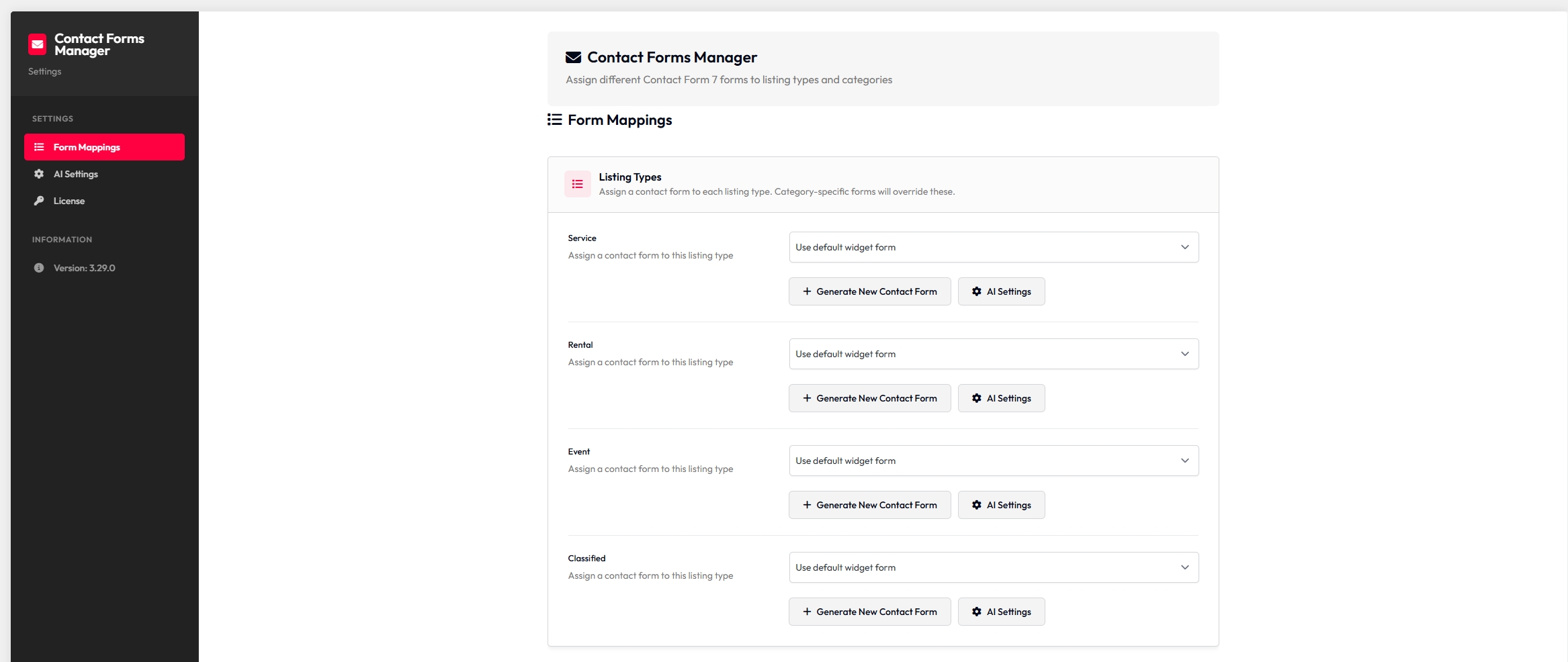
For listing types: Select a form from the dropdown for each type (rental, service, event, classifieds). You can use existing Contact Form 7 forms or generate new ones using the AI generator button. Forms assigned here apply to all listings of that type unless a category-specific form exists.
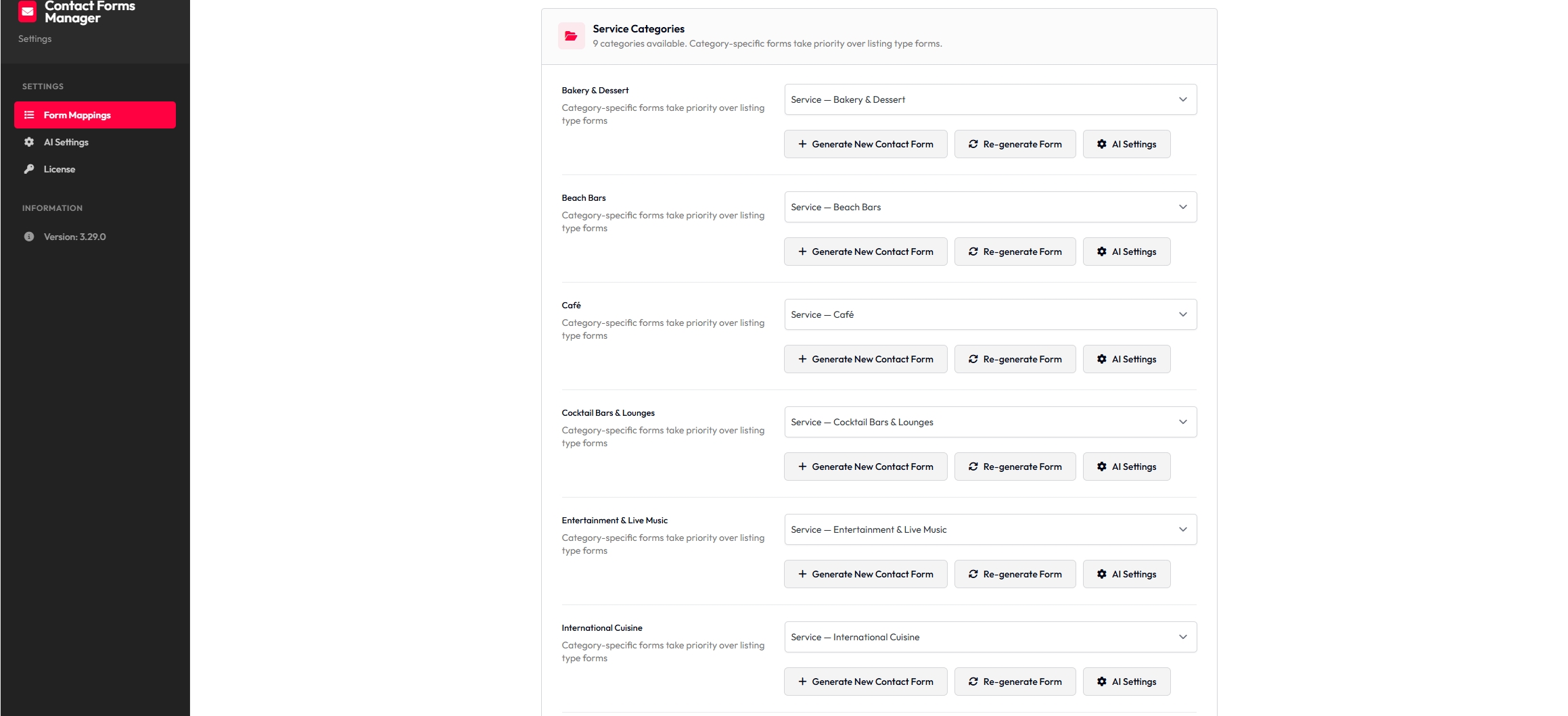
For categories: Browse categories grouped by listing type. Assign forms to specific categories for more granular control. Category forms take priority over listing type forms, so a “Restaurants” category form will override the general “Service” form for restaurant listings.
AI generation workflow: Click “Generate New Contact Form” for any listing type or category. A modal opens with context information pre-filled. Add any extra instructions (like “include a phone number field” or “make date optional”), click Generate, and the AI creates form code, email subject, and email body. Review and edit if needed, then save. The form is created in Contact Form 7 and automatically assigned to that type or category.
Priority system: When a visitor views a listing, the plugin checks for forms in this order: 1) Category-specific form (if the listing belongs to a category with an assigned form), 2) Listing type form (if a form is assigned to that listing type), 3) Default widget form (the form you’ve configured in the Contact Owner widget). This ensures the right form always appears.
Key features in detail
Dashboard statistics: See at a glance how many forms are configured, how many listing types have forms assigned, and how many categories have their own forms. Helps you understand your setup quickly.
Search functionality: Quickly find listing types or categories using the search box. Results filter in real-time as you type, making it easy to navigate large sites with many categories.
Visual status indicators: Badges show whether forms are configured (“Configured”) or not set (“Not Set” or “Inherits”). Color-coded status helps you identify what needs attention.
Keyboard shortcuts: Power users will appreciate shortcuts like Ctrl/Cmd+S to save, Ctrl/Cmd+K to focus search, and Ctrl/Cmd+1/2 to switch tabs. Escape closes modals.
Settings page: Configure your AI provider (OpenAI or Gemini), API keys, model selection, sender email and name, and enable/disable custom date/time pickers. Settings are organized clearly with helpful descriptions.
License page: Activate your license key, view license status and expiration, check remaining activations, and check for plugin updates. Changelogs are accessible directly from the update check interface.
Help modal: Comprehensive help documentation accessible from the main dashboard. Includes getting started guide, AI generator tips, priority system explanation, and links to full documentation and support.
Perfect for
- Real estate sites: Different forms for rentals (booking-focused) vs sales (inquiry-focused), or different forms for residential vs commercial properties
- Service platforms: Tailored forms for different service categories—restaurants might need reservation requests, while tours need booking dates and times
- Event sites: Forms that vary by event type—concerts vs workshops vs conferences each have different information needs
- Classifieds sites: Product-specific forms that collect relevant details based on category
- Multi-category sites: Any Listeo site with diverse listings that benefit from context-specific contact forms
Technical details
The plugin integrates deeply with Listeo Core and Contact Form 7. It hooks into the widget display system to swap forms dynamically based on listing context. Custom validators ensure date and time fields work correctly. Special mail tags extend Contact Form 7’s functionality. The AI generator uses contextual prompts that understand different listing types and their requirements.
Date fields use the name cfm_date and accept DD/MM/YYYY format (with native HTML5 date picker support). Time fields use the name cfm_time and require 24-hour format (HH:MM). The custom time picker provides a grid interface with 10-minute intervals. Both pickers are optional and can be disabled in settings if you prefer standard inputs.
Email templates automatically include the listing title in the subject line, the page URL in the body, and proper sender/recipient configuration. Confirmation emails (Mail 2) are generated automatically with appropriate content based on the form fields.
Requirements
- WordPress 6.0 or higher
- PHP 7.4 or higher
- Listeo Core 2.0 or higher
- Contact Form 7 (must be installed and active)
For AI form generation, you’ll need an API key from either OpenAI or Google Gemini, configured in the Settings page.


Reviews
There are no reviews yet.